Aliases & Shortcuts
Custom triggers and global hotkeys for any command.
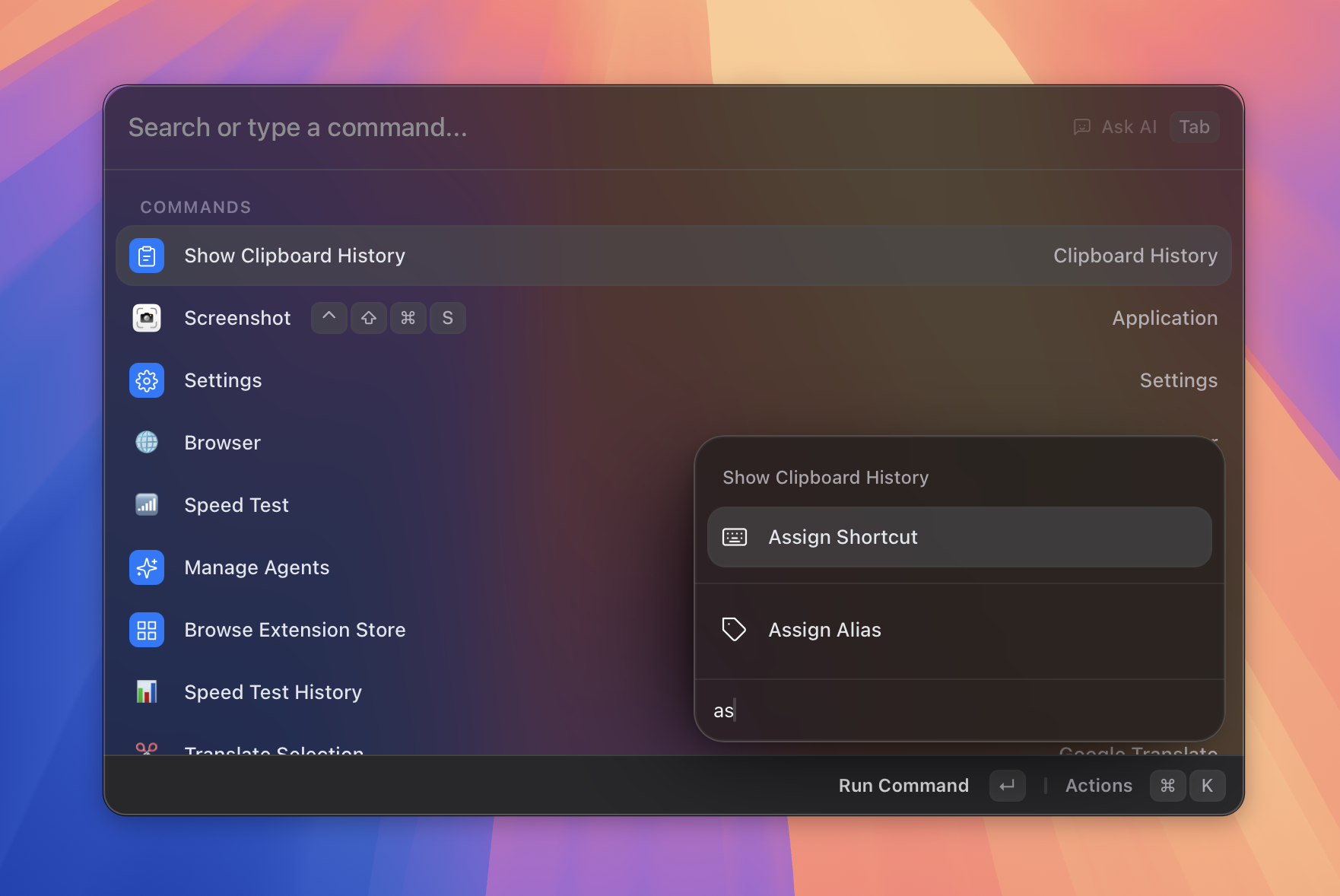 Figure: the Applications tab assigning a shortcut or alias.
What it does
Asyar gives you two ways to reach any app or command faster:
- Aliases — a short word (1–10 lowercase letters or digits) that, when typed in the search bar, immediately runs the matching app or command. For example, set
cas an alias for Chrome and typingclaunches Chrome directly. - Shortcuts — a global keyboard combination (for example
⌥⌘C) assigned to any app or command. Press the hotkey from anywhere on your computer and Asyar runs the target immediately, without you needing to open the launcher first.
Both types are assigned per item — one alias and one shortcut per app or command. You can assign, change, or remove them at any time.
How to use it
Assigning an alias
From search results (quickest way):
- Open Asyar and search for the app or command you want.
- With the result highlighted, open the action panel with
⌘K. - Choose Assign Alias (or Change Alias if one is already set).
- Type 1–10 lowercase letters or digits and press
Enterto save.
From Settings:
- Open Settings (
⌘,or search for "Settings") and go to the Applications or Extensions tab. - Find the app or command in the list. Click its Alias cell.
- Type the alias and press
Enter.
Assigning a global shortcut
From search results:
- Search for the app or command, highlight it, then press
⌘K. - Choose Assign Shortcut (or Change Shortcut).
- Press the key combination you want to assign. Asyar checks for conflicts and confirms.
From Settings:
- Open Settings → Applications or Settings → Extensions.
- Click the Shortcut cell next to the item.
- Press the combination and save.
To view all assigned shortcuts in one place, search for shortcuts to open the Shortcuts view. Select any entry and choose Change or Remove from the action panel (⌘K).
Removing an alias or shortcut
- In the Settings tabs, click the small remove button (×) next to the assigned alias or shortcut badge.
- In the Shortcuts view, select the entry and choose Remove from the action panel.
Shortcuts & actions
The shortcuts and aliases themselves are configured via the action panel on search results and the Settings tabs — there are no dedicated keyboard shortcuts for the management views beyond the standard ones below.
Action panel (⌘K) on any search result:
- Assign Alias / Change Alias — opens the alias input for the highlighted item.
Action panel (⌘K) on any search result or in the Shortcuts view:
- Assign Shortcut / Change Shortcut — opens the shortcut recorder.
Inside the Shortcuts view (search for shortcuts):
| Action | How |
|---|---|
| Change shortcut | ⌘K → Change |
| Remove shortcut | ⌘K → Remove |
Tips
- Aliases rules — an alias can only contain lowercase letters and digits (
a–z,0–9) and must be 1–10 characters long. No spaces or symbols. - Conflict detection — if the alias you type is already used by another item, Asyar asks if you want to reassign it.
- Shortcuts vs aliases — shortcuts work even when Asyar is hidden; aliases require you to open the launcher and type. Use shortcuts for the apps you reach dozens of times a day, aliases for everything else.
- One alias per item — each app or command can have only one alias, but the same alias cannot be shared.
- Shortcuts view — type
shortcutsin the search bar to open a dedicated view that lists every shortcut you have assigned, grouped by Applications and Commands. It is handy for a quick audit.
Related
- The Basics
- Keyboard Shortcuts
- Window Management
- Snippets
- Import from Raycast — bring your existing app hotkeys and aliases over instead of recreating them