Browser Integration
Search bookmarks, history, and tabs.
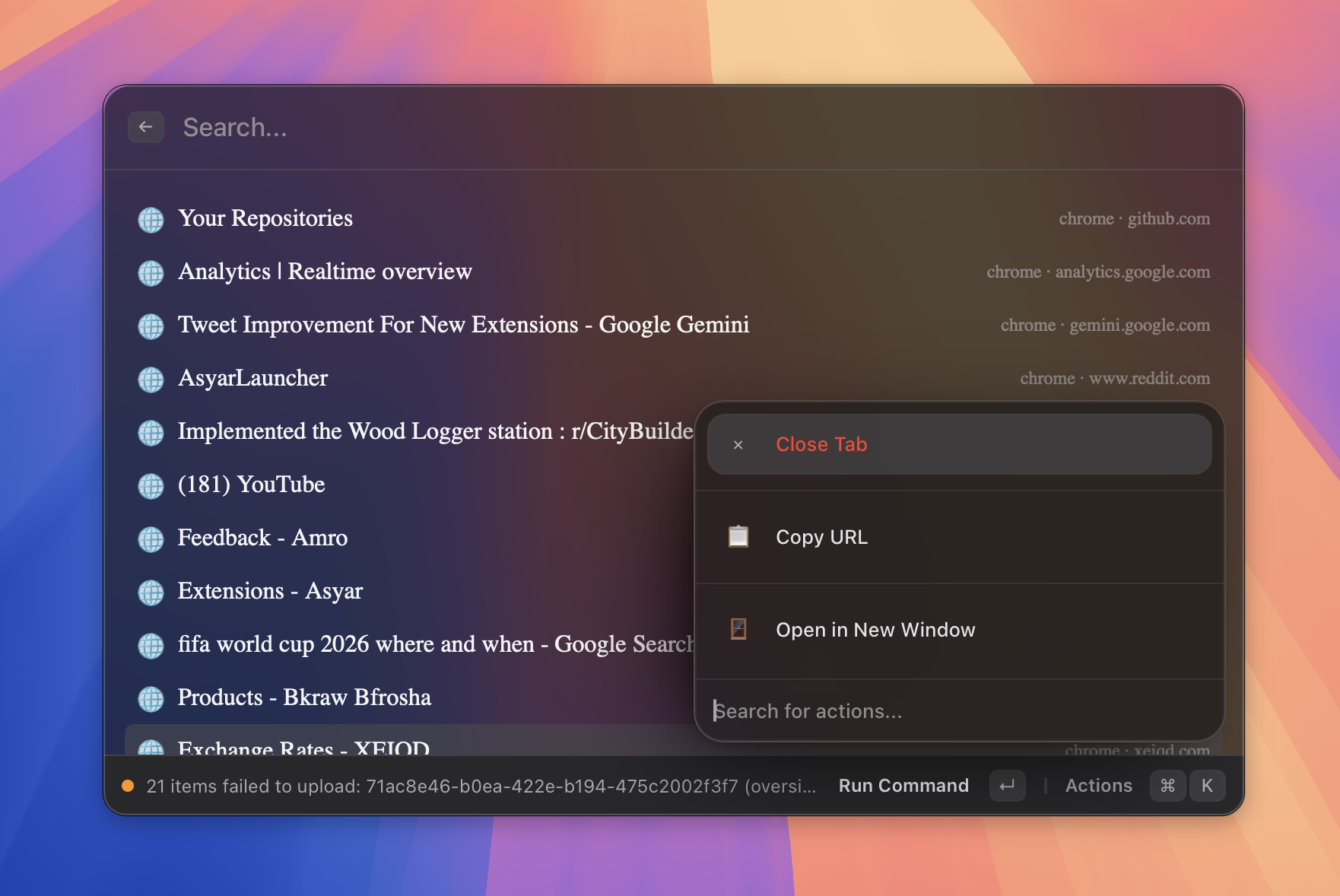 Figure: bookmark and tab results appearing in search.
What it does
The Browser extension brings your browser into the Asyar search bar. Once you install the Asyar companion in your browser and approve the pairing, Asyar can search your bookmarks, browsing history, and open tabs — all from the launcher. Selecting a bookmark or history result opens it in your browser. Selecting an open tab switches directly to it.
Browser integration is built around an explicit pairing model: each browser instance must be approved by you in Settings → Browsers before Asyar can read from it. You can revoke access for any browser at any time.
The companion extension currently supports Chromium-based browsers (Chrome, Brave, Arc, Edge, Vivaldi). Firefox and Safari companions are planned.
How to use it
Step 1 — install the companion
Install the Asyar companion browser extension in your browser. The companion creates a local connection between Asyar and the browser. See the Browsers section in Settings for the current install links for each browser family.
Step 2 — approve the pairing
- Open Asyar's Settings (
⌘,) and go to the Browsers tab. - When the companion connects for the first time, a Pending pairing request appears showing the browser family and variant.
- Click Allow to approve it, or Deny to reject it.
Once approved, the browser appears in the Connected browsers list with a status indicator (connected / offline).
Step 3 — search
Open Asyar and start typing. Bookmarks, history entries, and open tabs from your paired browsers appear in the results alongside your other commands and extensions. Select a result and press Enter to open it.
You can also use the Browser command for a dedicated command bar that lets you search tabs, bookmarks, and history, open a URL directly, or run a web search — all in one place.
Revoking a browser
- Open Settings → Browsers.
- Find the paired browser in the Connected browsers list.
- Click Revoke to remove it. Asyar will no longer access that browser's data until it is re-paired.
Shortcuts & actions
| Action | How |
|---|---|
| Open a bookmark or history result | Select it → Enter |
| Switch to an open tab | Select the tab result → Enter |
| Open Browser command bar | Search "Browser" → Enter |
| Open URL directly | Use the Open URL command (type open url) |
| Approve a pairing request | Settings → Browsers → Allow |
| Revoke a paired browser | Settings → Browsers → Revoke |
Tips
- If the companion is installed but the browser shows as offline in Settings → Browsers, check that the browser is running and the companion extension is enabled.
- Pairing is per browser instance. If you use multiple browser profiles, each profile with the companion installed will show as a separate pairing request.
- The Open new content in preference in the Browser extension settings controls which browser receives URLs and web searches opened from Asyar. You can set it to a specific browser or keep it on Most recently active browser.
- Browser search results (bookmarks, history, tabs) are off by default in the main search and are shown through the Browser extension. Make sure the Browser extension is enabled in Settings → Extensions.