Snippets
Text expansion: type a keyword, paste the full text.
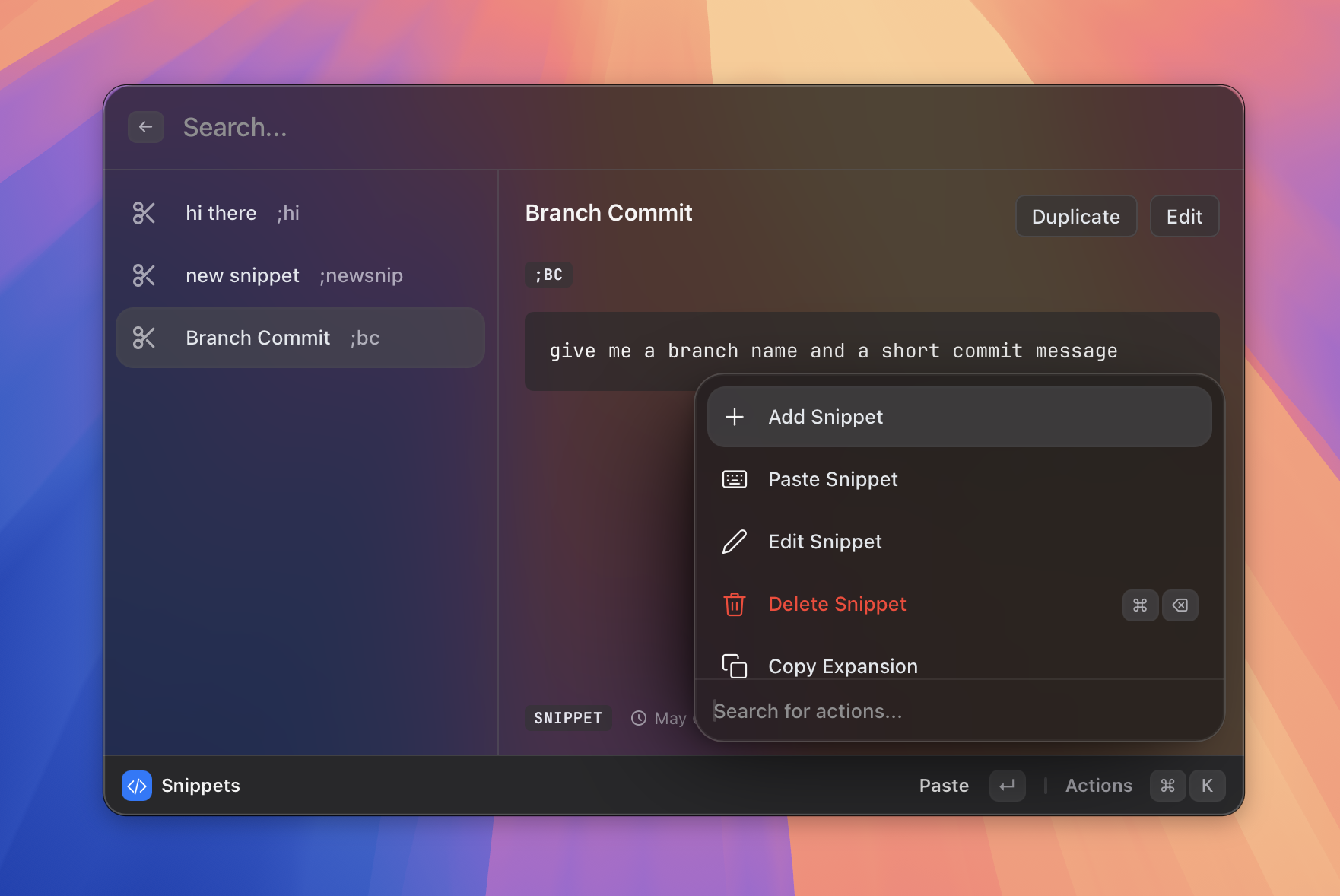 Figure: the snippets list view.
What it does
Snippets let you expand a short keyword into a longer piece of text — anywhere on your computer, in any app. For example, type ;email and it expands to your full email address, or ;sig becomes your email signature.
Expansion happens in the background as soon as you type the keyword followed by a space or other word-boundary character. You do not need to open Asyar first.
Snippets also support dynamic placeholders inside the expansion text: {Selected Text}, {Clipboard Text}, {UUID}, {Date}, {Time}, {Weekday}, and {Date & Time}. These are resolved at the moment you trigger the snippet.
Note (macOS only): Background text expansion requires the macOS Accessibility permission. If you have not granted it yet, Asyar will show a warning banner inside the Snippets view with a button to open System Settings. On Windows and Linux this permission is not required — expansion works without any extra setup.
How to use it
To browse and paste your snippets from the launcher:
- Open Asyar and type
snippetsto open the Snippets view. - Use
↑/↓to move between snippets, or type in the search bar to filter. - Press
Enterto paste the selected snippet's expansion into the frontmost app.
To add a new snippet:
- Open the Snippets view and press
⌘N(or open the action panel with⌘Kand choose Add Snippet). - Fill in the Name (required), an optional Keyword, and the Expansion text.
- To insert a dynamic placeholder, type
{in the expansion field to open the placeholder picker, or click the{ }button next to the field. - Press Save (or
⌘S).
To delete a snippet:
- Select the snippet in the list.
- Press
⌘⌫— a confirmation dialog appears before the snippet is permanently removed.
Shortcuts & actions
| Action | How |
|---|---|
| Add snippet | ⌘N |
| Paste selected snippet | Enter |
| Delete selected snippet | ⌘⌫ (with confirmation) |
| Save form | ⌘S |
| Cancel form | Esc |
| Open action panel | ⌘K |
Action panel (⌘K) entries while the view is open:
- Add Snippet — open the new-snippet form.
- Paste Snippet — paste the selected snippet's expansion.
- Edit Snippet — open the edit form for the selected snippet.
- Delete Snippet — delete with confirmation (
⌘⌫). - Copy Expansion — copy the expansion text to the clipboard without pasting.
- Duplicate Snippet — create a copy with an auto-suffixed keyword.
- Pin / Unpin Snippet — pin a snippet to the top of the list.
- Clear All Snippets — remove every snippet (with confirmation).
Tips
- Keyword conventions — use a prefix like
;or/to avoid accidental triggers (for example;addrinstead of justaddr). Keep keywords short and distinctive so they're easy to recall. - No keyword needed — you can leave the keyword blank and still paste the snippet manually from the launcher view using
Enter. - Dynamic placeholders — type
{in the expansion field while creating or editing to browse all available placeholders. The picker inserts the correct{token}syntax for you. - Pinned snippets — pin frequently used snippets so they always appear at the top of the list regardless of search.
- Save from clipboard — if you see something in Clipboard History that you want to reuse often, use Save as Snippet in the clipboard action panel (
⌘K) to open it pre-filled in the snippet editor.
Emoji shortcodes
If you install the official Emoji extension from the Store, it registers an emoji dictionary into Asyar's built-in inline expansion engine. Once installed, you can type a :shortcode: anywhere — like :party: — and it expands to the matching emoji in any app, just like your own text snippets.
Unknown shortcodes are not just ignored: Asyar can ask your AI provider to look up the right emoji and remember it for next time.
To get started:
- Open Asyar and type store →
Enter. - Find the Emoji extension and install it.
- Start typing
:shortcode:anywhere — for example:thumbsup:or:rocket:.
The expansion engine itself is built into Asyar; the emoji dictionary comes from the Emoji extension, so shortcodes only work after you install it.
Related
- The Basics
- Clipboard History
- Aliases & Shortcuts
- Extensions
- Import from Raycast — bring your existing snippets over instead of recreating them