Window Management
Resize and arrange windows with layout presets.
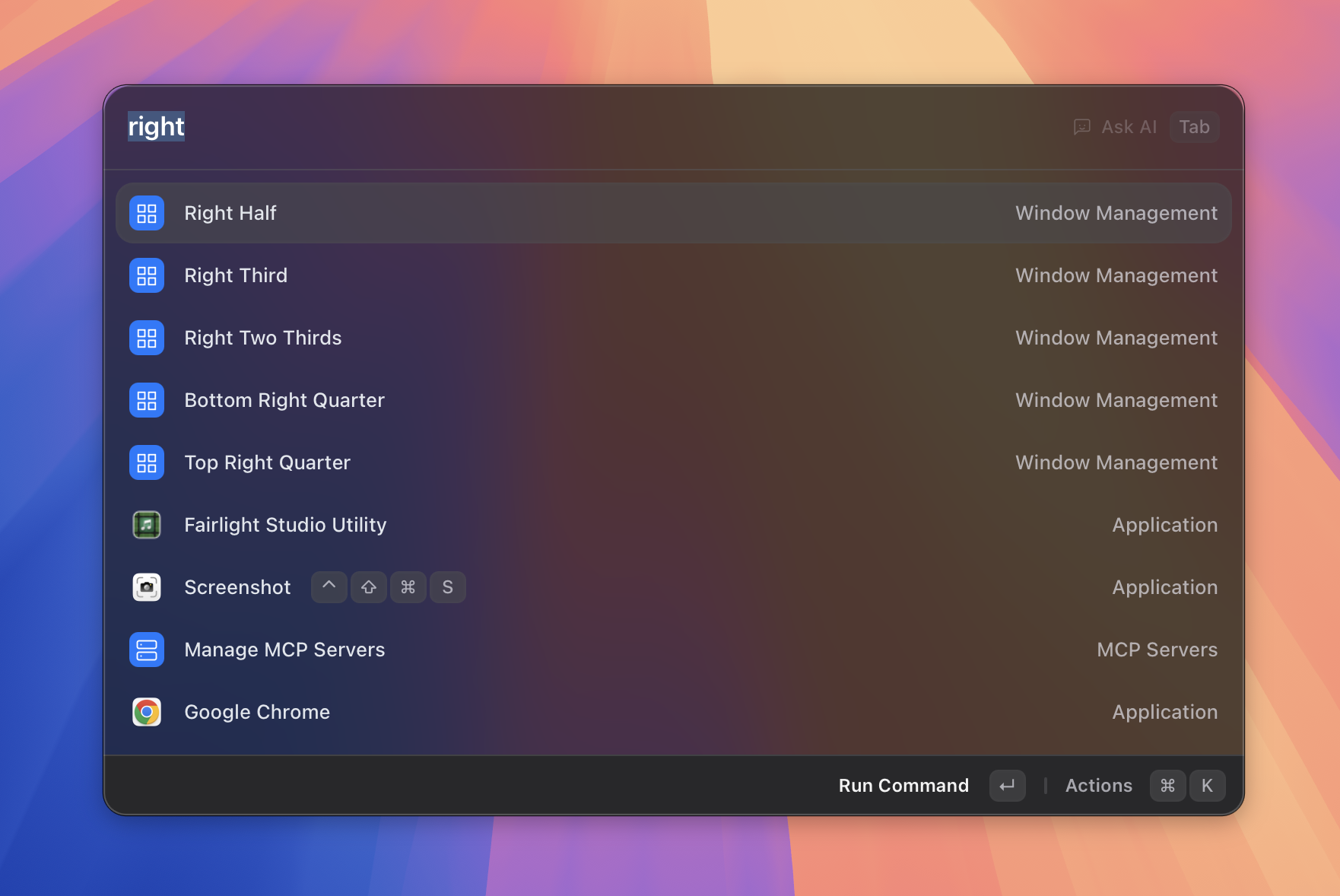 Figure: the layout presets list.
What it does
Window Management lets you instantly resize and reposition any window using named layout presets — without touching the mouse. You pick a layout by name from the Asyar search bar, and the frontmost window snaps to that position. A brief heads-up notification confirms the layout that was applied, and you can always undo the last move with Restore Previous Bounds.
You can also save your own custom layouts by capturing any window's current size and position.
How to use it
To apply a built-in preset:
- Switch to the app whose window you want to resize.
- Open Asyar with your global hotkey.
- Type part of the layout name — for example
left half,top right quarter, ormaximize. - Select the matching result and press
Enter. The window snaps immediately and Asyar dismisses.
To undo the last layout:
- Type
restorein the search bar and pressEnter, or search for Restore Previous Bounds.
To manage custom layouts:
- Type
manage window layoutsand pressEnterto open the Manage Window Layouts view. - From here, open the action panel with
⌘Kand choose Save Current Window as Layout to capture the frontmost window's current position and size. - To delete a custom layout, select it in the list and choose Delete from the action panel (
⌘K).
Shortcuts & actions
| Action | How |
|---|---|
| Apply any preset | Search its name, then Enter |
| Undo last layout | Search restore, then Enter |
| Open action panel | ⌘K (in Manage Layouts view) |
Action panel (⌘K) entries inside the Manage Layouts view:
- Save Current Window as Layout — captures the frontmost window's current bounds as a new custom layout.
- Delete — removes the selected custom layout (shown when a layout is selected).
Built-in presets
| Preset | What it does |
|---|---|
| Left Half | Left 50% of the screen |
| Right Half | Right 50% of the screen |
| Top Half | Top 50% of the screen |
| Bottom Half | Bottom 50% of the screen |
| Top Left Quarter | Top-left 25% |
| Top Right Quarter | Top-right 25% |
| Bottom Left Quarter | Bottom-left 25% |
| Bottom Right Quarter | Bottom-right 25% |
| Left Third | Left 33% |
| Center Third | Center 33% |
| Right Third | Right 33% |
| Left Two Thirds | Left 66% |
| Right Two Thirds | Right 66% |
| Center | Centered, 80% × 80% |
| Almost Maximize | Centered, 90% × 90% |
| Maximize | Full screen |
| Restore Previous Bounds | Undo the last applied layout |
Tips
- Switch app first, then open Asyar — the layout is applied to whatever window was in the foreground before you opened Asyar.
- Custom layouts are searchable — once saved, your custom layouts appear in the main search results alongside the built-in presets. Just start typing their name.
- Restore only remembers one step — it undoes the single most recent layout change, not a full history.