Extensions
Browse, install, and manage extensions from the store.
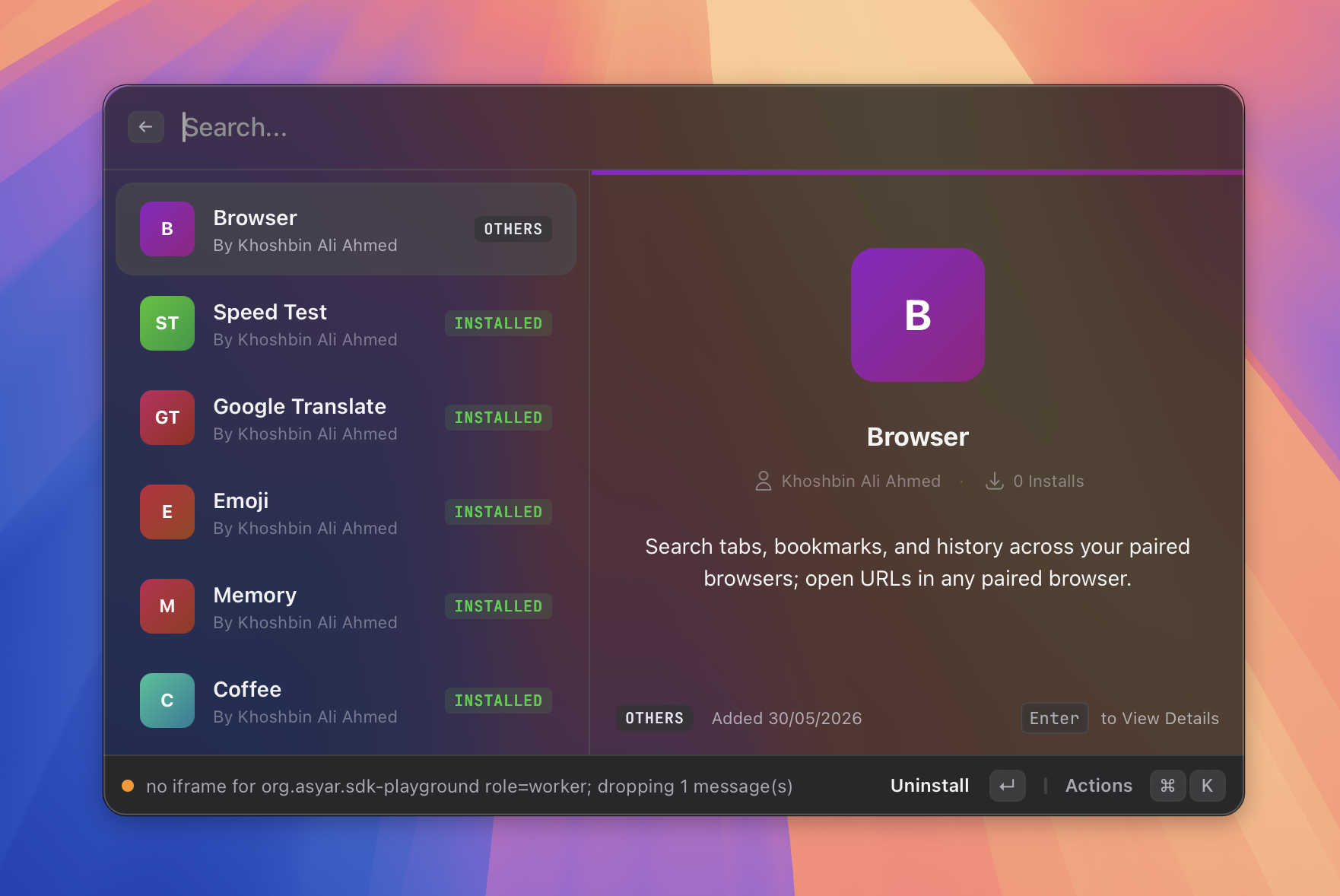 Figure: the Extension Store view.
What it does
Extensions add new commands and search results to Asyar. The built-in features you see out of the box — calculator, clipboard history, scripts, browser integration, and others — are all extensions under the hood. You can find more through the Extension Store.
The Extensions settings tab gives you a full list of everything installed: you can enable or disable each extension, view its commands, assign aliases and hotkeys to individual commands, and uninstall extensions you no longer need.
The Extension Store (store command) is where you go to find and install new extensions. It is currently in early development, so the selection may be limited.
If Developer Mode is enabled, you can also sideload an extension directly from a local file.
How to use it
Browse and install from the store
- Open Asyar and type store (or search for Browse Extension Store).
- Press
Enterto open the store. - Browse available extensions and follow the on-screen prompts to install one.
Enable or disable an extension
- Open Settings (
⌘,) and go to the Extensions tab. - Find the extension in the list and use the toggle in the Enabled column to turn it on or off.
Manage commands, aliases, and hotkeys
- In Settings → Extensions, click the chevron next to an extension to expand its commands.
- Select a command row to see its details in the right-hand panel.
- In the Alias column, click Add Alias to assign a short keyword that triggers this command directly from the search bar.
- In the Hotkey column, click Record Hotkey to assign a global keyboard shortcut to the command.
- To remove an alias or hotkey, click the × next to it.
Filter the list
Use the filter chips at the top of the Extensions tab to show All, Commands, Extensions, or Themes.
Sideload from a file (Developer mode required)
- Enable Developer Mode in Settings → Advanced.
- In Settings → Extensions, click the + button in the toolbar.
- Choose Install from File… and select the extension package.
- Restart Asyar to activate the new extension.
Uninstall an extension
- Select the extension row in Settings → Extensions.
- In the detail panel on the right, click Uninstall.
Shortcuts & actions
| Action | How |
|---|---|
| Open the Extension Store | Type store → Enter |
| Enable / disable an extension | Settings → Extensions → toggle |
| Add an alias to a command | Settings → Extensions → expand extension → Add Alias |
| Record a hotkey for a command | Settings → Extensions → expand extension → Record Hotkey |
| Sideload from file | Settings → Extensions → + → Install from File… (Developer mode) |
| Uninstall an extension | Settings → Extensions → select extension → Uninstall in detail panel |
Tips
- Asyar ships official first-party extensions in the Store alongside community-made ones. For example, the Emoji extension adds a full emoji & symbols picker and registers
:shortcode:expansions — type:party:anywhere and it expands to the emoji. See Snippets for details on how shortcode expansion works. - Disabling an extension removes all of its commands from the search results but keeps the extension installed. You can re-enable it at any time.
- Aliases let you trigger any command with a short word you choose. For example, you could assign the alias
gto a specific search command so typinggin the launcher goes straight to it. - Hotkeys are global keyboard shortcuts that run a command without opening the launcher first. They work even when Asyar's window is hidden.
- If an extension update is available, an Update link appears next to its name. You can update individual extensions or use Update All if several have updates at once.
- The Extension Store is still being built out. If you are a developer and want to publish an extension, check the developer documentation.