Getting Started
Install Asyar, finish first-run setup, and run your first search.
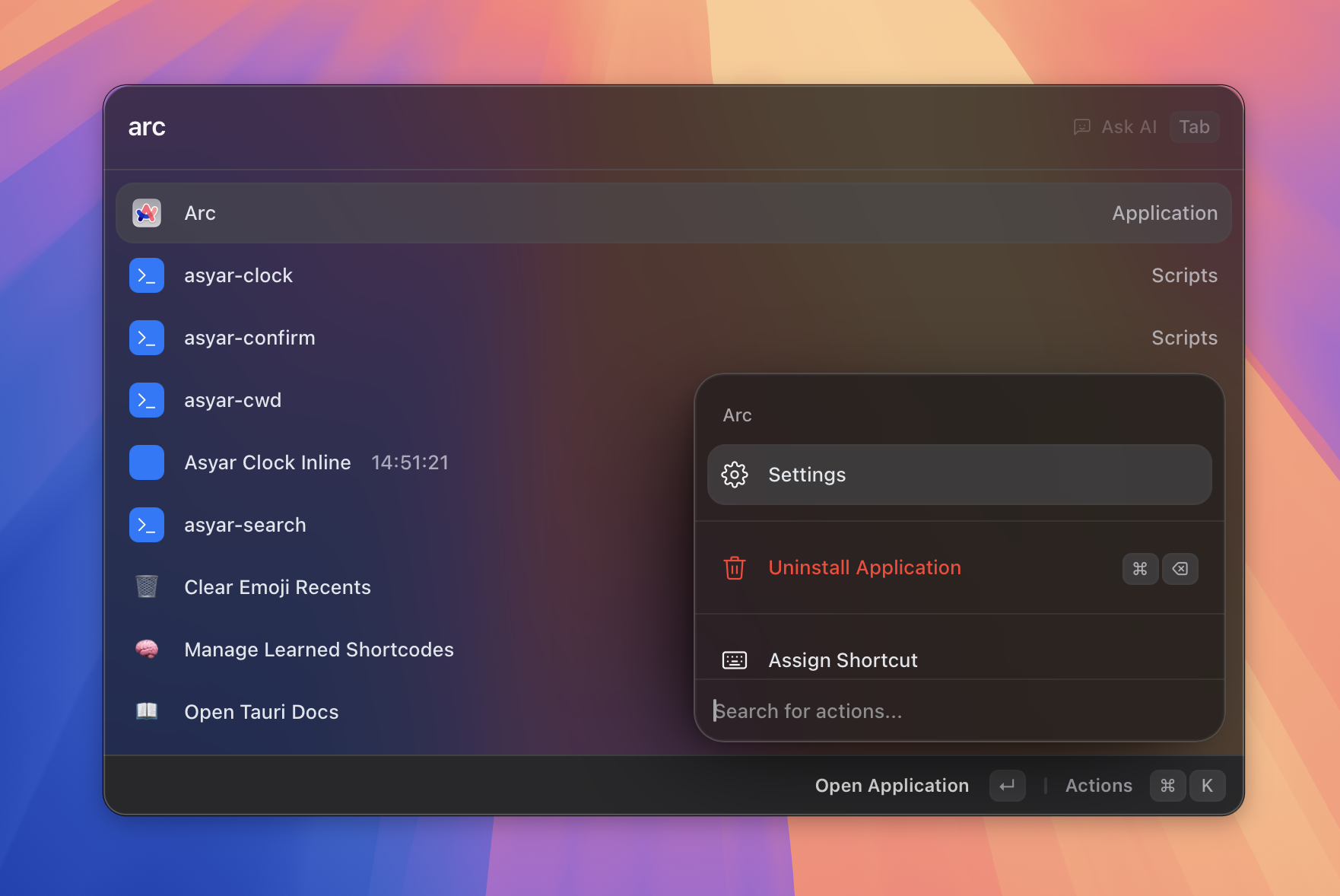 Figure: the Asyar launcher, opened with the global hotkey.
Install
Download the latest release for your operating system from asyar.org and run the installer.
- macOS: Open the
.dmg, drag Asyar to your Applications folder, then open it. Because Asyar is not yet on the Mac App Store, macOS may show a security prompt the first time — open System Settings → Privacy & Security and click Open Anyway. - Windows / Linux: Run the downloaded installer and follow the on-screen steps.
Once Asyar starts, a small icon appears in the menu bar (macOS) or system tray (Windows/Linux) to confirm it is running. The onboarding flow opens automatically.
First-run setup (hotkey, accessibility, theme)
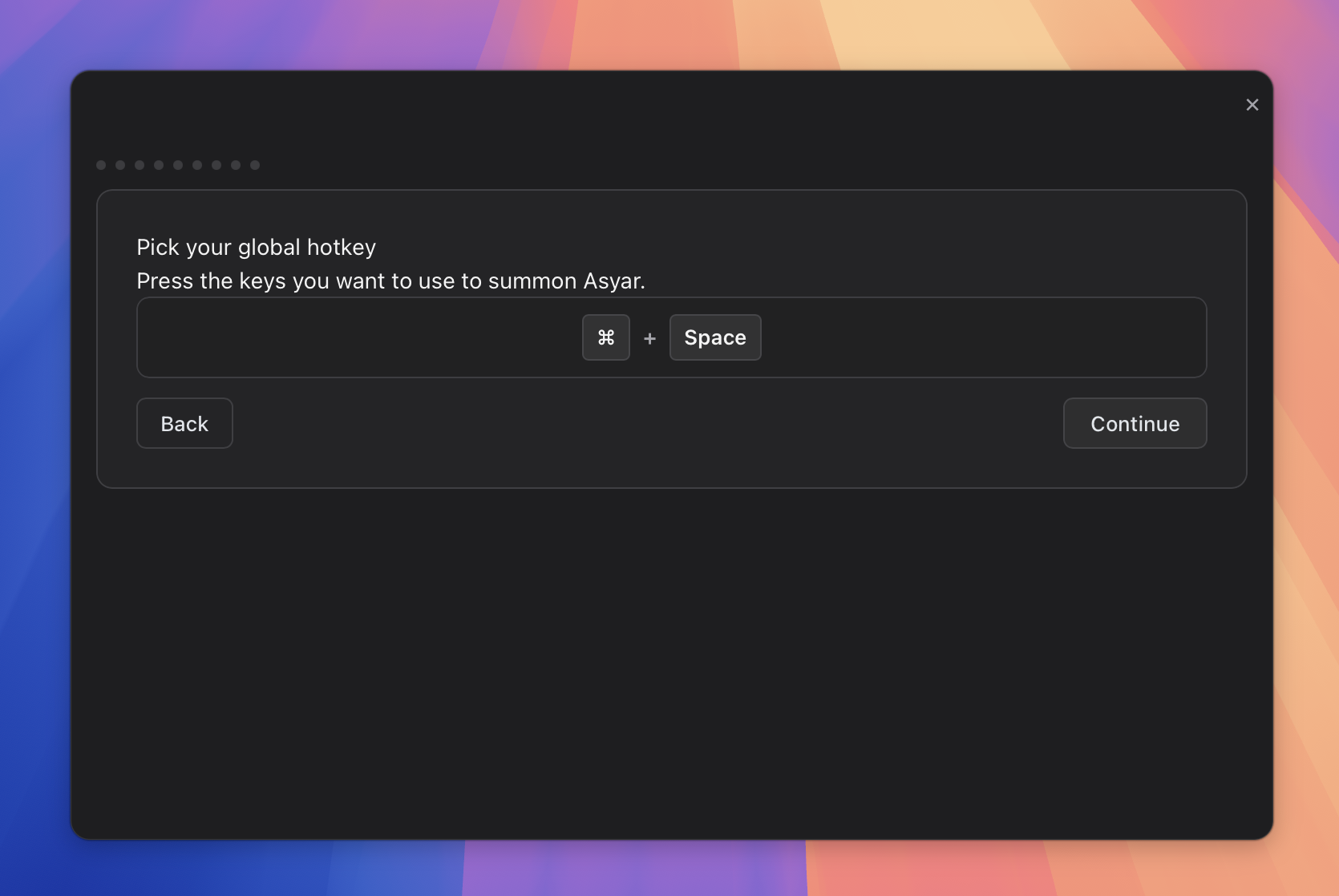 Figure: the onboarding step where you pick your global hotkey.
Asyar walks you through a short onboarding flow the first time you launch it. Here is what each step does:
-
Welcome — A quick introduction, plus theme and window-mode pickers. If you're switching from Raycast, click Import from Raycast… here to bring over your snippets, quicklinks, and app hotkeys — see Import from Raycast. Click Start the tour to continue.
-
Pick your global hotkey — Press the key combination you want to use to summon Asyar from anywhere on your computer. Click inside the recorder, press your desired keys (for example, a modifier + letter), then click Continue. You can change this at any time in Settings.
-
Grant accessibility access (macOS only) — On macOS, Asyar uses the Accessibility API to paste text snippets and capture your selected text. Click Open System Settings, find Asyar in the list, and enable the toggle. Windows and Linux users can skip this step — it is not required there. On macOS, text expansion won't work until you grant it.
-
Pick a theme — Browse a selection of community themes and install one in one click, or stick with the built-in Asyar theme. This step is optional; you can change or add themes any time from the extension store.
-
Try a few extensions — Asyar shows a curated list of popular extensions for your platform. Check the ones you want and click Install selected, or click Skip to add extensions later from the built-in store.
-
One-keystroke AI commands — If you set up an AI provider, this step offers to create a Grammar Fix command: select text in any app, press the hotkey, and the selected text is replaced with the corrected version. You can skip this and create AI commands later.
-
Done — Onboarding is complete. Press your new hotkey to open the launcher.
You can re-run onboarding at any time from Settings → General → Re-run onboarding.
Your global hotkey
The global hotkey you chose during setup shows or hides Asyar from anywhere on your computer — even when Asyar is not the active app. It works system-wide, so you do not need to switch apps first.
To change your hotkey after setup, open Settings → General (or Settings → Shortcuts) and click inside the shortcut recorder. Press your new combination and click Save.
If the hotkey stops working, see Troubleshooting for common causes.
Your first search
Press the hotkey you chose during setup. The Asyar window appears in the centre of your screen with the search bar ready.
Start typing anything — an app name, a command, a URL, or a calculation. Results appear instantly as you type. Use ↑ and ↓ to move between results, then press Enter to run the selected one.
A few things to try right away:
- Type an app name (for example, "Safari") and press
Enterto launch it. - Type a URL (for example, "github.com") and press
Enterto open it in your browser. - Type a simple calculation (for example, "12 * 7") and see the answer in the results list.
- Press
⌘Kwith any result selected to open the action panel and see what else you can do with that item. - Press
Escto step back: it clears your search, closes anything you've opened, and finally hides Asyar.
Once you are comfortable with the basics, explore The Basics to learn how results are ranked, how the action panel works, and how to use the AI chip.