Settings
A tour of every settings tab.
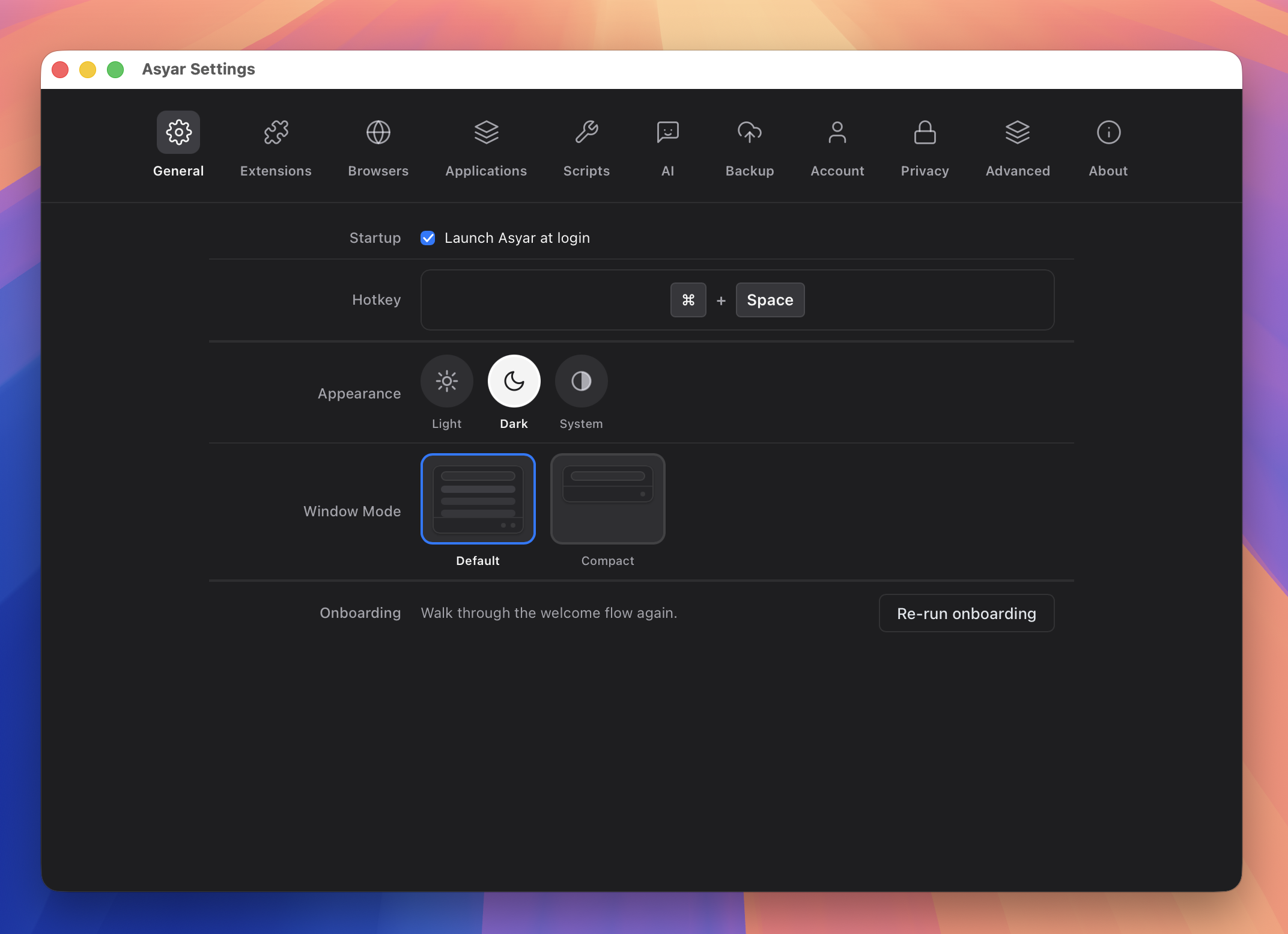 Figure: the General settings tab.
Open Settings with ⌘, from anywhere inside the launcher, or search for "Settings" and press Enter. The window is divided into tabs along the top.
General
The General tab covers the most common settings:
- Startup — Toggle "Launch Asyar at login" to have Asyar start automatically when you log in to your computer.
- Hotkey — Change the global show/hide shortcut. Click inside the recorder, press your new combination, and click Save.
- Appearance — Switch between Light, Dark, or System (follows your operating system) colour scheme.
- Window Mode — Choose between Default (search bar + results list visible immediately) and Compact (search bar only; results expand when you type).
- Custom Themes — If you have installed community themes, a theme picker appears here. Select a theme to apply it instantly.
- Onboarding — Click "Re-run onboarding" to walk through the welcome flow again — useful if you skipped any steps the first time.
Appearance
The Appearance tab gives you a larger visual picker for the same settings:
- App Theme — Three large swatches for System, Light, and Dark. Click one to apply it.
- Launch View — Visual preview cards for Default and Compact window modes. Click one to switch immediately.
- Custom Themes — If you have installed custom themes from the store, they appear here as selectable tiles alongside the built-in Default theme.
Shortcuts
The Shortcuts tab has one purpose: changing the global activation shortcut.
- Asyar activation shortcut — Click inside the recorder and press the key combination you want. Asyar checks for conflicts with other registered shortcuts and warns you if the combination is already in use. Click Save to apply it.
All other per-item shortcuts (for commands, snippets, scripts, and agents) are managed from the Applications & Extensions tab and from each item's row in the launcher.
Applications & Extensions
This tab has two sub-sections that share a tab.
Applications lets you control which apps Asyar indexes:
- Scan directories — Asyar scans your Applications folder by default. Click "Add Directory" to add more folders (for example, a custom tools folder). Default folders are shown as read-only; custom folders can be removed.
- Per-app toggles — A list of every discovered app. You can hide individual apps from search results by turning off their toggle. You can also assign a keyboard shortcut or a search alias to any app from its row.
Extensions (the Extensions tab) lists all installed extensions with their commands:
- Enable or disable an individual extension with its toggle.
- Assign a keyboard shortcut or alias to any command from its row.
- Install an extension from a file using the "Install from file" button.
- Update available extensions from this view. Auto-update behaviour is controlled in Advanced.
File Search
- Enable/disable — Turn the whole feature off if you don't want your files indexed. Turning it back on rebuilds the index.
- Index Status — Shows whether the index is Building, Ready, Rescanning, or has hit its size cap, plus how many files are indexed and whether it was restored from a snapshot on this launch. Click Rebuild Index to force a fresh scan.
- Search Roots — Empty means your entire home folder. Click Add Root to narrow the scope to specific directories instead.
- Exclude Patterns — Add glob patterns (like
*.tmp) on top of the built-in exclusions (caches,node_modules,.git, VM disk images, and other system directories).
See File Search for how to use the feature itself.
AI, MCP & Browsers
This section is split across two related tabs.
AI tab:
- Tab continues last thread — When on, pressing
Tabto enter AI mode resumes your previous conversation instead of starting a new one. - Providers — Add one or more AI providers (Anthropic, OpenAI, OpenRouter, Google, Ollama, or a custom endpoint). For each provider, configure your API key and choose a model. Click the star (★) next to a provider to make it the default — this is what the AI chip uses when you press
Tabin the launcher. - Advanced AI settings — Max tokens and temperature controls for fine-tuning AI responses.
- Manage Agents — Open the Agents view to create, edit, and assign hotkeys to AI agents.
- MCP — Connect Model Context Protocol servers to give your AI agents access to external tools and data. Each server you add expands what your agents can do.
Browsers tab:
- Connected browsers — Shows which browsers have the Asyar companion extension installed and paired. A paired browser shares its open tabs, bookmarks, and history with Asyar's search.
- Pending pairings — When a browser requests pairing, a prompt appears here. Allow or deny each request.
- Paired browser list — Revoke a pairing at any time by clicking Remove next to the browser name.
Privacy, Scripts & Advanced
Privacy tab:
- Encryption status — Shows whether Asyar's local data store is encrypted on disk.
- Clipboard privacy — Configure rules to prevent certain apps or patterns from being captured in Clipboard History.
- Secret redaction — Automatically strip API keys and tokens from clipboard entries before they are stored.
Scripts tab:
- Script directories — Add folder paths that Asyar should watch for executable scripts. Any script placed in a watched folder is discoverable from the launcher immediately — no restart required. Remove a folder to stop watching it.
Advanced tab:
- Extension Search — Toggle whether installed extensions can contribute results to the main search bar.
- Extension Actions — Toggle whether extensions can add actions to the main action panel (
⌘K). When off, only Asyar's built-in actions appear. - Escape Key — Choose how
Escbehaves when a view is open: Step Backwards (default), Hide Window, or Reset Launcher. - Auto Updates — Extensions update silently in the background when this is on.
- Text Expansion — Enable or disable snippet text expansion. Requires Accessibility permission on macOS (macOS only).
- Developer Mode — Unlocks the extension inspector, verbose logging, and extension sideloading. Intended for extension developers.
Account, Backup & About
Account tab:
- Sign in — Sign in with GitHub or Google to get access to cloud sync, AI conversation history sync, and premium features. See Sync & Backup for full details.
- Features — Shows which subscription features are active on your account.
- Subscription — Opens your subscription management page on asyar.org.
- Cloud Sync — Shows the last sync time and lets you trigger a manual sync. Requires an active subscription.
- Encrypted Sync — Toggle end-to-end encryption for synced data. See Sync & Backup for details.
Backup tab:
- Export — Select which data categories to include, optionally set a password, and click Export to save a local backup file.
- Import — Choose a backup file to restore from. You can pick which categories to restore and how to handle conflicts (Merge, Replace, or Skip).
- Migrate from Raycast — Click Import from Raycast… to bring in snippets, quicklinks, and app hotkeys from a Raycast export file. See Import from Raycast.
About tab:
- Version — Shows the current Asyar version.
- Update channel — Switch between Stable and Beta update channels.
- Check for updates — Manually trigger an update check. If an update is available, you can download and install it from here without leaving the app.