Keyboard Shortcuts
Every Asyar shortcut in one place. The same list appears in-app under "Help".
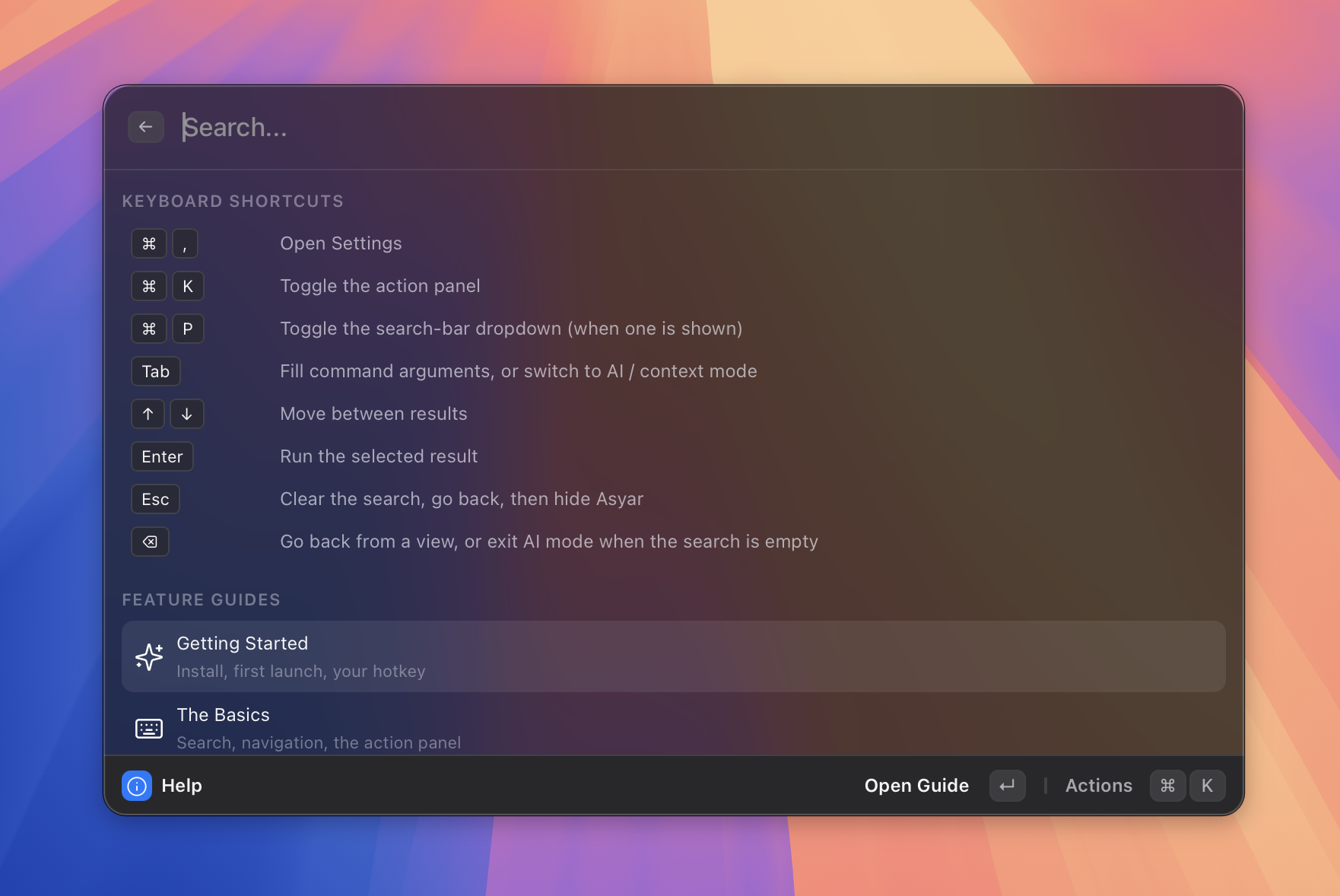 Figure: the in-app Help view cheat sheet.
Global
These shortcuts work anywhere inside the Asyar launcher window.
| Shortcut | What it does |
|---|---|
| The hotkey you chose during setup | Show or hide Asyar from anywhere on your computer |
⌘, |
Open Settings |
⌘K |
Toggle the action panel |
⌘P |
Toggle the search-bar dropdown (when one is shown) |
Tab |
Fill command arguments, or switch to AI / context mode |
↑ / ↓ |
Move between results |
Enter |
Run the selected result |
Esc |
Clear the search → go back from a view → hide Asyar |
The show/hide hotkey is user-configurable. The exact keys depend on what you set during onboarding or in Settings → Shortcuts. It is never a fixed combination.
Windows & Linux: Asyar's shortcut display uses macOS symbols (⌘, ⌥, ⌃, ⇧). On Windows and Linux, use Ctrl wherever ⌘ is shown, and use the Windows/Super key where a Super-key shortcut is shown.
In a view
These shortcuts apply when you have drilled into a result that opens a full view (for example, Clipboard History, Snippets, or an AI agent conversation).
| Shortcut | What it does |
|---|---|
⌫ |
Go back from the open view (when the search bar is empty), or exit AI mode |
Esc |
Follows the Escape behaviour you configured: step backwards, hide window, or reset launcher |
⌘K |
Toggle the action panel for the selected item in the view |
You can change what Esc does when a view is open in Settings → Advanced → Escape Key. The three options are:
- Step Backwards — clears the search first, then pops the view, then hides Asyar (the default).
- Hide Window — hides Asyar immediately without clearing state.
- Reset Launcher — hides Asyar and resets all state so the next open starts fresh.
Per-feature
A few built-in features add extra shortcuts while their view is active.
Snippets
| Shortcut | What it does |
|---|---|
⌘N |
Create a new snippet |
⌘⌫ |
Delete the selected snippet |
⌘S |
Save changes when editing a snippet |
Clipboard History
| Shortcut | What it does |
|---|---|
⌘⌫ |
Delete the selected clipboard entry |
Portals
| Shortcut | What it does |
|---|---|
⌘N |
Create a new portal |
File Search
| Shortcut | What it does |
|---|---|
Space |
Quick Look preview of the selected file |
⌘R |
Reveal in Finder |
⌘⇧C |
Copy Path |
⌘⌥C |
Copy Name |
⌘T |
Open in Terminal |
⌘P |
Toggle Pin |
⌘⌫ |
Move to Trash |
Tab / ⌘I |
Send to Asyar AI |
⌘⇧F |
Search Everywhere (deep OS-native search) |
For all other features, use ⌘K to open the action panel — every available action for the selected item is listed there.