Portals
Save URLs as named launchers you can find by name.
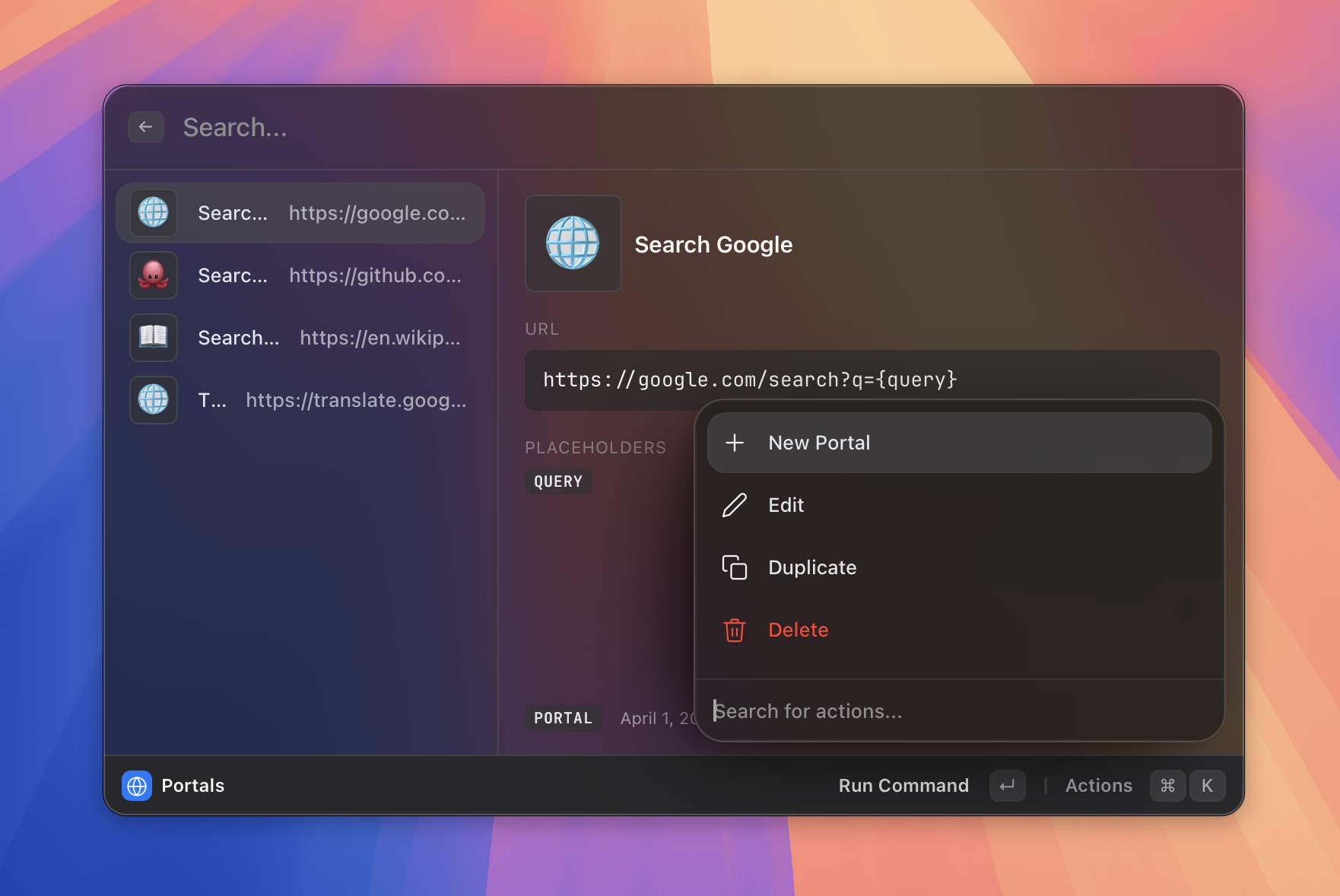 Figure: a portal result appearing in search.
What it does
Portals are named URL shortcuts you can find and open from the Asyar search bar just by typing their name. Think of them as bookmarks that live inside the launcher.
A portal is made of three things: a name (what you search for), a URL (where it goes), and an icon (an emoji shown in the result list). The URL can be static (https://github.com) or dynamic — you can embed placeholders like {query} so that typing after the portal name fills in a search query before opening the page.
Portals appear as regular search results the moment you type their name, so finding them is as fast as finding any other command.
How to use it
To create a portal:
- Open Asyar and search for New Portal, or type
portalsand pressEnterto open the Portals view, then press⌘N. - Fill in the Name — this is what you will search for later.
- Enter the URL. To make it dynamic, include
{query}in the URL (for examplehttps://google.com/search?q={query}). Type{to open the placeholder picker, or click the{ }button. - Optionally change the Icon emoji.
- Press Save (
⌘S) or click the Save button.
To open a portal:
- Open Asyar and start typing the portal's name.
- The portal appears in the search results. Press
Enterto open it in your default browser. - If the URL has a
{query}placeholder, pressTabwhen you see the portal chip — then type your search query and pressEnter.
To manage portals:
Type portals and press Enter to open the Portals view. Use ↑ / ↓ to select portals, and use ⌘K to edit, duplicate, or delete the selected portal.
Shortcuts & actions
| Action | How |
|---|---|
| New portal (in view) | ⌘N |
| Save form | ⌘S |
| Cancel form | Esc |
| Open action panel | ⌘K |
Action panel (⌘K) entries inside the Portals view:
- New Portal — open the new-portal form.
- Edit — edit the selected portal's name, URL, or icon.
- Duplicate — create a copy of the selected portal.
- Delete — permanently remove the selected portal (with confirmation).
Available placeholders
When building a dynamic portal URL, press { or click the { } button to insert any of these:
| Placeholder | What it inserts |
|---|---|
{query} |
The text you type after pressing Tab on the portal chip |
{Selected Text} |
Text currently selected in the frontmost app |
{Clipboard Text} |
Current text content of the clipboard |
{UUID} |
A randomly generated UUID v4 |
{Date} |
Today's date |
{Time} |
Current time |
{Date & Time} |
Today's date and current time |
{Weekday} |
Current day name (e.g. Tuesday) |
Tips
- Quick search portals — set up portals for search engines you use often. For example, a GitHub issues portal with URL
https://github.com/search?q={query}&type=issuesmeans you can search GitHub Issues directly from Asyar. - Static portals — a URL without any placeholder opens immediately on
Enter, no Tab step needed. Great for dashboards or frequently visited pages. - Tab to activate — for portals with
{query}, the launcher shows a chip. PressTabto set the chip, type your query, thenEnterto open. - Icons are emoji — use any emoji as the icon. It shows up in search results to help you spot the portal at a glance.
Related
- The Basics
- Aliases & Shortcuts
- Browser Integration
- Import from Raycast — turn your existing quicklinks into portals instead of recreating them